> For the complete documentation index, see [llms.txt](https://help.activenow.io/llms.txt). Markdown versions of documentation pages are available by appending `.md` to page URLs; this page is available as [Markdown](https://help.activenow.io/en/absences-and-makeup-classes/individual-lesson-reschedule-request.md).
# Reporting Absences in Individual Lessons
Participants in individual courses can report absences through the Client Panel in two ways — depending on your school's settings and the course billing type.
## Reschedule request
The participant reports their absence and simultaneously submits a request for the school to find a new lesson slot. You can then move the lesson in the Calendar or decline the request.
### How to enable
{% hint style="info" %}
Before enabling this option, make sure you have the **Reporting Absences and Making Up Lessons** feature active — you can find it in *Settings → General → Additional features*.
{% endhint %}
Go to *Settings → Making up for absences*. Enable **Self-reporting absences in individual lessons** and check **Report absence with a request for reschedule**.

{% hint style="info" %}
For participants to see available time slots, the instructor must have their availability configured. See the [Setting Instructor Availability](/en/instructor-management/instructor-availability.md) article for details.
{% endhint %}
### Handling requests
When a participant reports an absence, they see available time slots for their instructor. The system shows slots where the instructor has no other lessons, is marked as available, and there is no break scheduled for that day. The participant selects a specific slot and submits the request.
When a request comes in, you receive a **notification** and it appears under *Pending sign-ups → Reschedule class requests*.

You can see which lesson the request refers to, the time slot proposed by the participant, and any comment they added. Each request has an **Actions** button with two options:
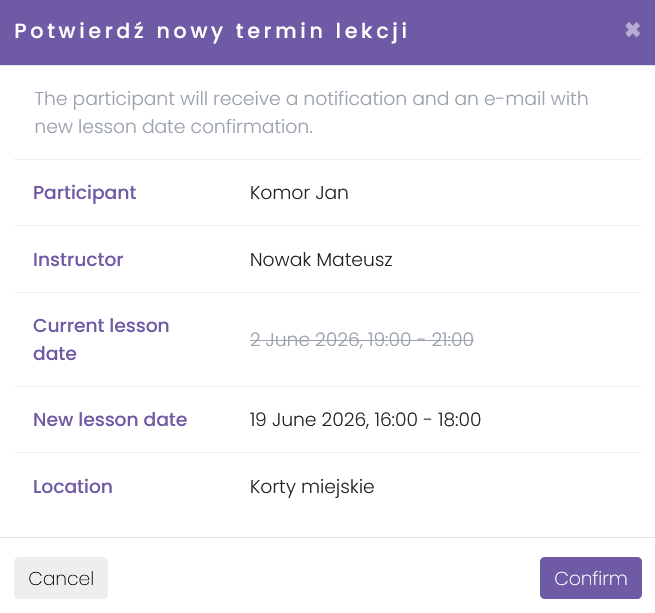
* **Confirm the time** — approves the proposed slot. You can change the room if needed.
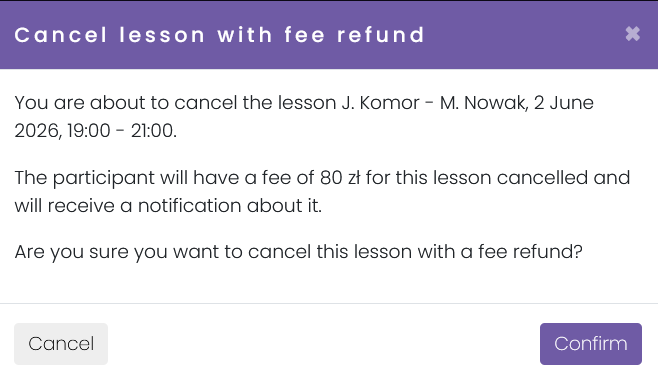
* **Cancel with refund** — declines the request and cancels the payment for that lesson. Available only when the course uses **price-per-class billing**. The participant is notified by email.
You can also reschedule the lesson manually in the Calendar — the system will show a note about the participant's request, and once you save the change it will automatically close the request.

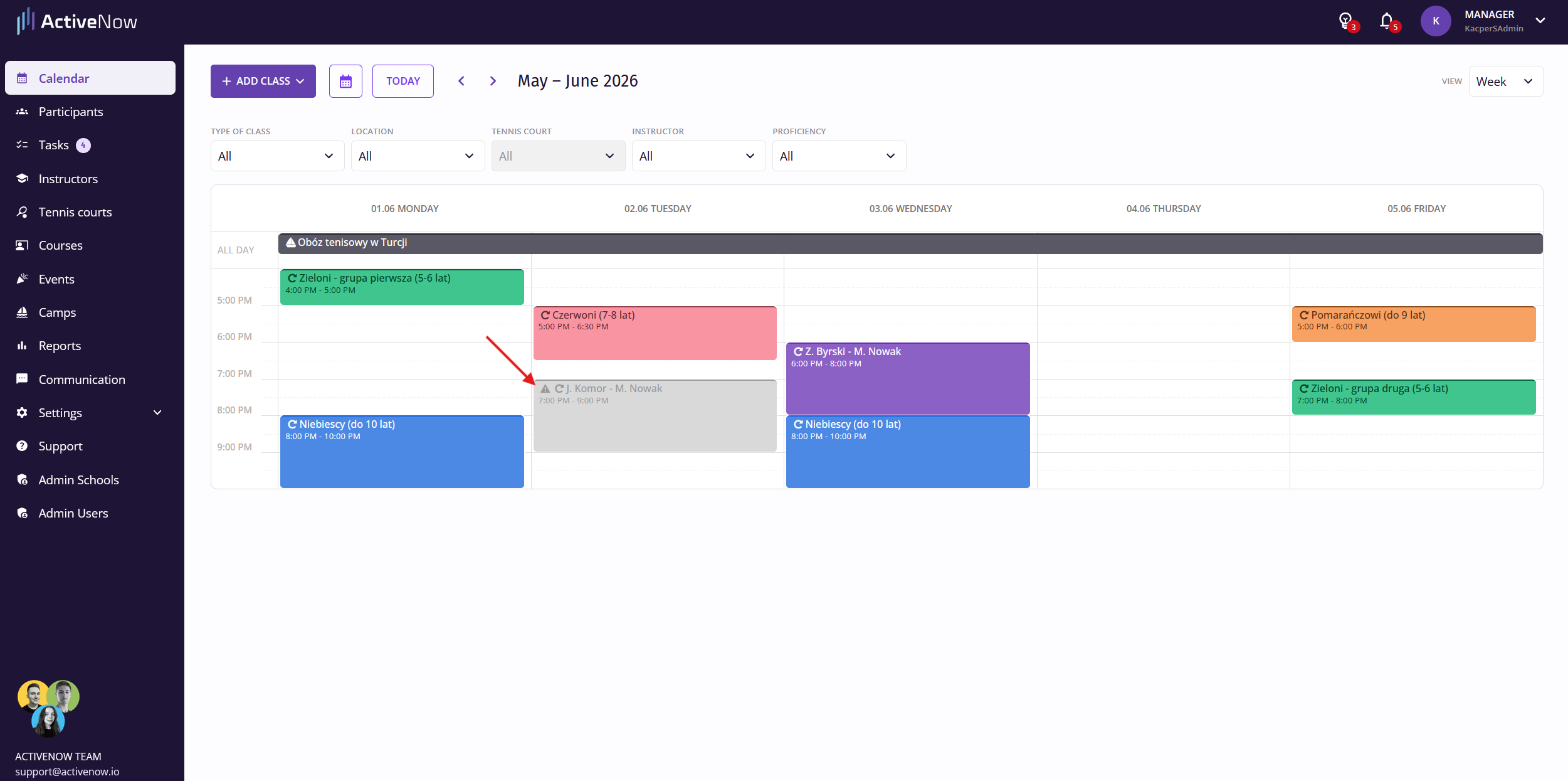
Lessons awaiting rescheduling are **shown in grey with a special icon** in the Calendar.
### Limits
To configure the default time limit for a valid reschedule request and the default number of allowed requests in individual courses, go to **Settings → Making up for absences**.
In the **Individual lesson absence reporting rules** section you can set the time window within which a request must be submitted to be considered valid.
If the participant submits within that window, the request is sent to the school. Otherwise, the participant is informed they missed the deadline and can only report their absence for that lesson without a reschedule request.
The default number of requests is used when creating new individual courses — each new course will allow the number of requests defined in Settings. Once a participant uses up all their requests for a course, they will be notified when attempting to submit another one and will only be able to report their absence going forward.
The request limit can be edited for each individual course during creation or at any later point.

### Letting instructors handle requests
Instructors can also manage reschedule requests — if you give them permission. Go to *Settings → Users → Instructor account settings* and toggle the switch to *Yes*.

Once enabled, instructors gain access to a new *Reschedule class requests* tab in their panel. They receive a notification for every new request and can accept it by moving the lesson to a new slot in the Calendar.

After the instructor makes a decision, the participant receives an email and a notification in their Client Panel, and you receive a notification in the manager panel.

## Billing cancellation
The participant reports their absence through the Client Panel — if they do so within the time limit and have not exceeded their allowance, the system automatically cancels the payment for that lesson.
{% hint style="warning" %}
This option only works when the course uses **price-per-class billing**. With other billing types, the payment will not be cancelled.
{% endhint %}
### How to enable
Go to *Settings → Making up for absences*. Enable **Self-reporting absences in individual lessons** and select **Billing cancellation**.
Time and count limits are configured in the same section — **Individual lesson absence reporting rules**.
---
# Agent Instructions
This documentation is published with GitBook. GitBook is the documentation platform designed so that both humans and AI agents can read, navigate, and reason over technical content effectively. Learn more at gitbook.com.
## Querying This Documentation
If you need additional information that is not directly available in this page, you can query the documentation by asking a question.
Perform an HTTP GET request on the following URL with the `ask` and `goal` query parameters:
```
GET https://help.activenow.io/en/absences-and-makeup-classes/individual-lesson-reschedule-request.md?ask=&goal=
```
`ask` is the immediate question: it should be specific, self-contained, and written in natural language.
`goal` is what the user is ultimately trying to achieve, the reason they need the answer. Sharing it helps GitBook give you a better, more relevant answer. A goal is most helpful when it describes the outcome the user wants rather than restating the question. For example, with `ask=how do I create an API token`, a goal like `automate deployments from our CI pipeline` lets GitBook tailor the answer to that use case.
The response will contain a direct answer to the question and relevant excerpts and sources from the documentation.
Use this mechanism when the answer is not explicitly present in the current page, you need clarification or additional context, or you want to retrieve related documentation sections.