> For the complete documentation index, see [llms.txt](https://help.activenow.io/llms.txt). Markdown versions of documentation pages are available by appending `.md` to page URLs; this page is available as [Markdown](https://help.activenow.io/en/camps-and-events/managing-events.md).
# Managing Sign-Ups and Events
Planning an open day, workshop, tournament, or any other one-time event? In ActiveNow you can set it up, collect online sign-ups, and manage the participant list — all in one place.
## How to enable Events
If the *Events* section isn't visible in your panel, enable it first:
1. Go to *Settings → Your Offering*.
2. Switch the toggle next to *Events (workshops, open days, tournaments etc.)* to *Yes*.
3. Refresh the page — the *Events* section will appear in the left-side menu.

## How to create a new event
1. Go to the *Calendar* tab, select the date you want, and click *New event*.
2. Fill in the details: name, number of places, venue, timing, and participant list.
3. Choose whether the event is **closed** (you add participants yourself, no external sign-ups) or **open** (participants can sign up on their own through a form on your website).
4. Click *Save*.

## How to add participants to an event in bulk
If you want to invite existing clients to an event:
1. Go to the *Participants* tab.
2. Select the people you want to add.
3. Click *Sign-up for an event* from the mass action menu.
## How to configure online sign-ups for an event
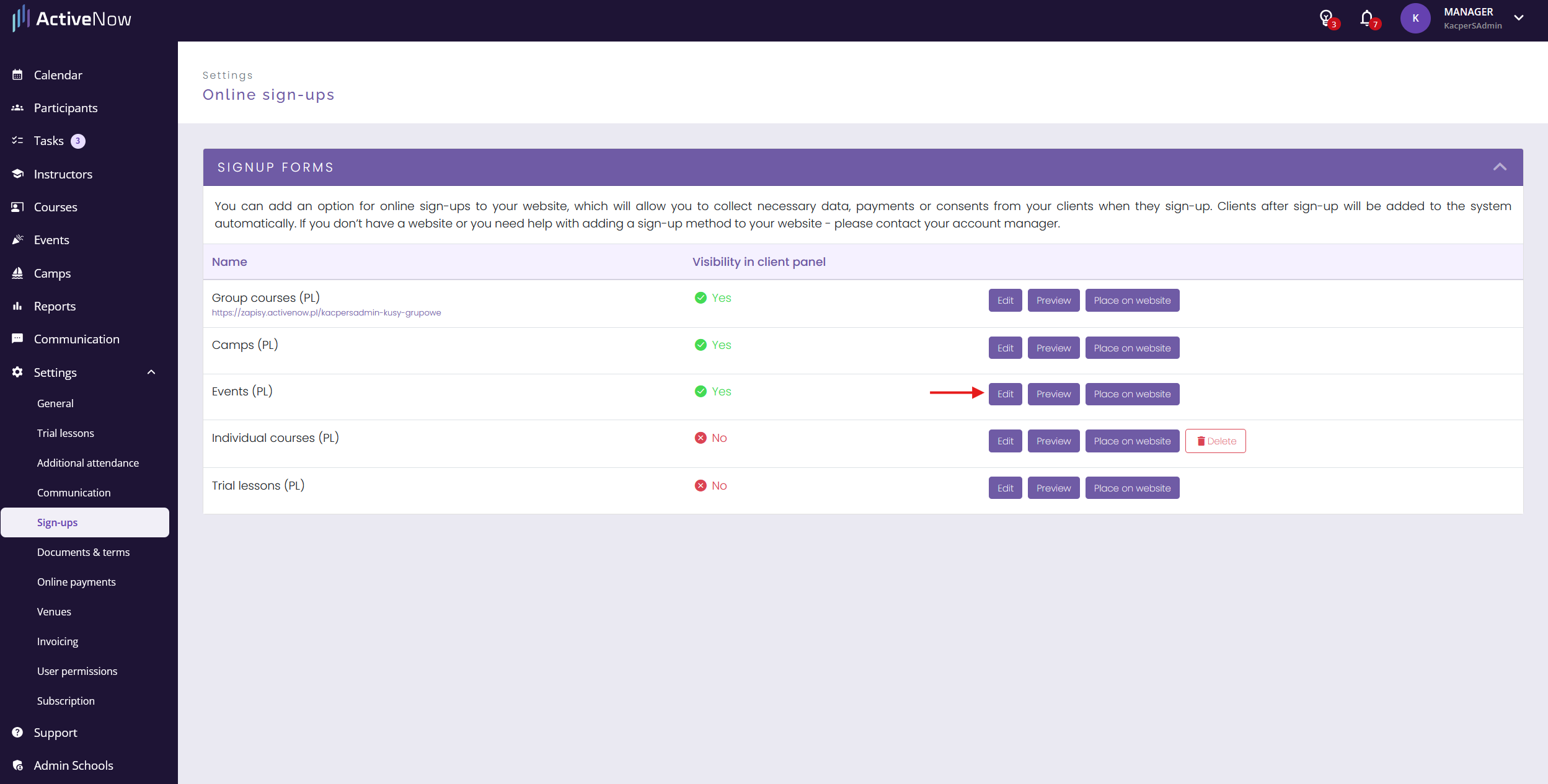
Configure the sign-up form in *Settings → Online sign-ups* — click *Edit* next to *Event sign-up forms*.
Once configured, click *Place on website*, copy the embed code, and paste it into your website.
## What information should the client fill in?
In the *Client data* tab, you decide which fields are visible to the client (the *Visible* column) and which are required (the *Required* column). You can reorder fields by dragging the handle on the left side.

If you need additional fields, add them in the [custom form fields](/en/online-sign-ups/custom-fields-in-sign-up-form.md) section.
## Which event details should appear in the sign-up summary?
In the *Displayed information* section, you decide which event details are visible in the sign-up summary. Unchecking a field hides it from the form. You can reorder these fields the same way as in the client data section.

## Terms and consents
You can add required checkboxes to the form — for example, for terms of service, image rights consent, or a privacy policy. Clients cannot complete sign-up without accepting them. For more details, see [Managing Terms and Consents](/en/online-sign-ups/managing-terms-and-consents.md).
## E-mail communication
At every stage of the sign-up process, the customer receives an automated email. In the Email Communication section, you can customize the content of each message to match your communication style:
* **Sign-up received** — sent after the form is submitted. It includes details of the selected classes, confirmation of registration, and the accepted documents.
If you want customers to automatically receive an invitation to the ***Client Panel*** after their registration is approved, select the "**Automatically invite to Client Panel**" option.

When online payments are enabled, you’ll have the option to set up two automated emails:
* **Sign-up and payment confirmation** – sent after the registration is paid for online.
* **Sign-up reminder** – sent if the participant does not pay for the registration within 10 minutes of filling out the form.
## Payment at sign-up
{% hint style="info" %}
The payment option during sign-ups is only available once you have set up [online payments](/en/billing/payu-configuration.md).
{% endhint %}
You can require clients to pay at the point of sign-up to make sure they show up.
There are two ways to collect payment:
* **Course fee** — the client pays the amount of the first payment for that event.
* **Fixed prepayment** — the client always pays the same amount regardless of the event chosen, for example as a booking fee.

## Previewing the form
Before sharing the form with clients, check how it looks in practice. Click *Preview* in *Settings → Online sign-ups*, fill in a test sign-up, and make sure everything works correctly.
## How to manage the list of registered participants
When someone signs up through the online form, they appear in the *Unconfirmed participants* section of that event. You can accept or reject each person — ActiveNow will send them an email notification either way.
Accepted participants also appear in your school's *Participants* tab.
{% hint style="info" %}
Want to collect waiting list sign-ups for events? Contact us at — we'll enable this feature on your account.
{% endhint %}
---
# Agent Instructions
This documentation is published with GitBook. GitBook is the documentation platform designed so that both humans and AI agents can read, navigate, and reason over technical content effectively. Learn more at gitbook.com.
## Querying This Documentation
If you need additional information that is not directly available in this page, you can query the documentation by asking a question.
Perform an HTTP GET request on the following URL with the `ask` and `goal` query parameters:
```
GET https://help.activenow.io/en/camps-and-events/managing-events.md?ask=&goal=
```
`ask` is the immediate question: it should be specific, self-contained, and written in natural language.
`goal` is what the user is ultimately trying to achieve, the reason they need the answer. Sharing it helps GitBook give you a better, more relevant answer. A goal is most helpful when it describes the outcome the user wants rather than restating the question. For example, with `ask=how do I create an API token`, a goal like `automate deployments from our CI pipeline` lets GitBook tailor the answer to that use case.
The response will contain a direct answer to the question and relevant excerpts and sources from the documentation.
Use this mechanism when the answer is not explicitly present in the current page, you need clarification or additional context, or you want to retrieve related documentation sections.