> For the complete documentation index, see [llms.txt](https://help.activenow.io/llms.txt). Markdown versions of documentation pages are available by appending `.md` to page URLs; this page is available as [Markdown](https://help.activenow.io/en/getting-started/creating-new-classes.md).
# Creating New Classes
You can add new classes from the Calendar or the Courses tab — this is where you set up the schedule, pricing, and participants for every course.
## Class types
In ActiveNow you can create four types of classes. Choosing the right one affects how classes appear on the Calendar and how you bill participants — so it's worth knowing which type fits which situation.
### Group course
A recurring course with a group of participants, held at the same time every week throughout a semester or year. Typical examples include dance classes, language courses, swimming, or team training sessions.
### Individual course
Regular weekly lessons at a fixed time, but with just one participant. Works well for tutoring, private music lessons, or personal training with a set schedule.
### One-time class
A single session with one participant, with no recurring schedule. Works well for one-off training sessions or classes arranged privately.
### Trial lesson
A single session for a potential participant who wants to try out the classes before committing to a full course. Afterwards, you can convert the trial into an individual course or sign the participant up for a group course — directly from the system. You can find more about setting up and managing trial lessons in the [Trial Lessons](/en/online-sign-ups/trial-lessons.md) article.

## How to create classes from the Calendar
In the *Calendar*, select the time slot you want, then choose the type of classes you'd like to create.
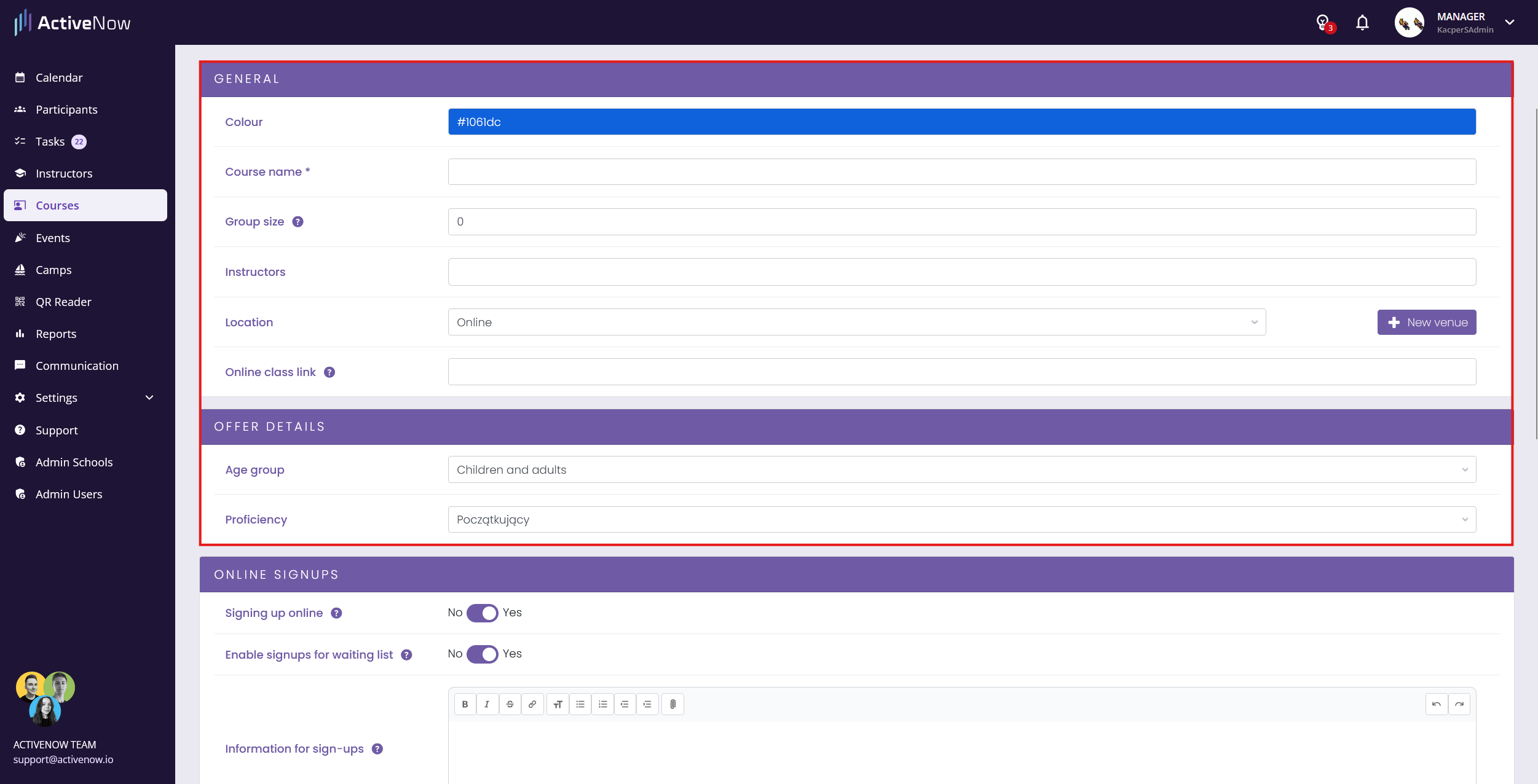
You'll be taken to the group course creation form, which is divided into sections:
**General** — core course information:
* **Course name**
* **Course size** — maximum number of participants
* **Venue** — if you select *Online*, a field for the lesson link will appear directly below
* **Schedule** — the course dates (start and end), the day of the week, and the class times. If instead of fixed dates you want to define the number of lessons upfront — [contact us](mailto:support@activenow.pl), we can enable a feature that calculates the end date automatically.
* [**Pricing**](/en/billing/billing-schedule-types.md) — price and billing settings for participants
* **Participants** — individual billing and attendance dates per participant
**Offer details** — visible when the school teaches both children and adults:
* **Proficiency** — selected from your [proficiency levels](/en/getting-started/managing-proficiency-levels.md)
* **Age group** — *Children*, *Adults*, or *Children and adults* (mixed). Schools that teach only one age group won't see this field — the system assigns the age group automatically.
**Online sign-ups** — sign-up settings:
* **Sign-up information** — content shown to participants during sign-up and in the confirmation email, such as what to bring or any requirements
Once you've filled in the details, click *Save* at the bottom of the form.
## How to create classes from the Courses tab
Go to the *Courses* tab and click *+ Add class*. From here you can create a group course or an individual course. The course details form is the same as described above.

---
# Agent Instructions
This documentation is published with GitBook. GitBook is the documentation platform designed so that both humans and AI agents can read, navigate, and reason over technical content effectively. Learn more at gitbook.com.
## Querying This Documentation
If you need additional information that is not directly available in this page, you can query the documentation by asking a question.
Perform an HTTP GET request on the following URL with the `ask` and `goal` query parameters:
```
GET https://help.activenow.io/en/getting-started/creating-new-classes.md?ask=&goal=
```
`ask` is the immediate question: it should be specific, self-contained, and written in natural language.
`goal` is what the user is ultimately trying to achieve, the reason they need the answer. Sharing it helps GitBook give you a better, more relevant answer. A goal is most helpful when it describes the outcome the user wants rather than restating the question. For example, with `ask=how do I create an API token`, a goal like `automate deployments from our CI pipeline` lets GitBook tailor the answer to that use case.
The response will contain a direct answer to the question and relevant excerpts and sources from the documentation.
Use this mechanism when the answer is not explicitly present in the current page, you need clarification or additional context, or you want to retrieve related documentation sections.