> For the complete documentation index, see [llms.txt](https://help.activenow.io/llms.txt). Markdown versions of documentation pages are available by appending `.md` to page URLs; this page is available as [Markdown](https://help.activenow.io/en/instructor-management/instructor-absences.md).
# Recording Instructor Absences
An instructor going on holiday or called in sick? Record their absence in ActiveNow — the system will immediately show you all affected lessons and let you reorganise them in one place.
## How to add an absence
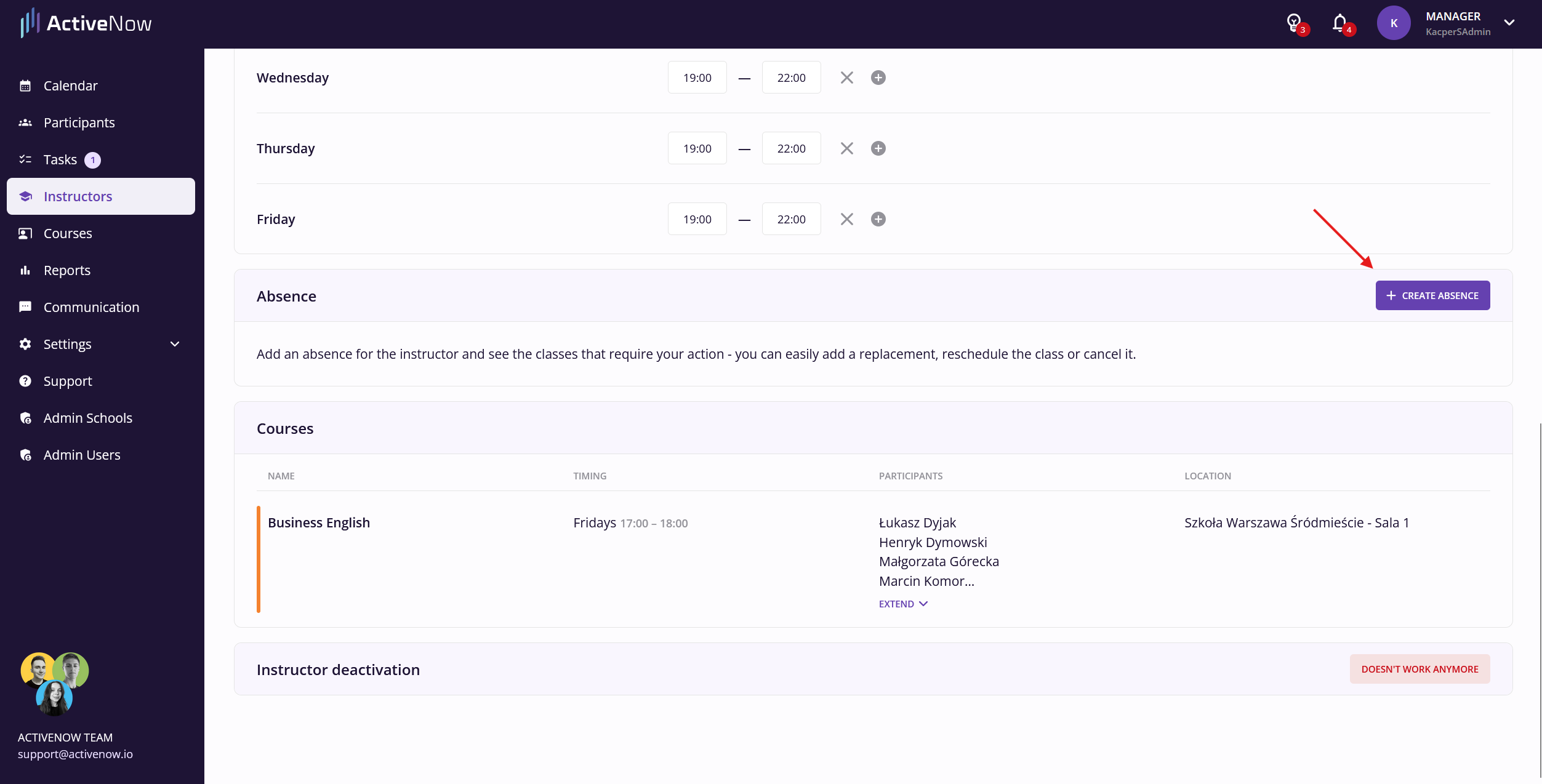
Go to the selected instructor's profile and scroll down to the ***Absences*** section — you'll find it below *Availability*. Click ***Create absence***.
In the window that appears, choose the type of absence:
* **All day or longer** — set the date range for the instructor's absence.
* **Selected hours** — choose a specific day and the time range during which the instructor will be unavailable.
Click ***Confirm***.
## Classes requiring action
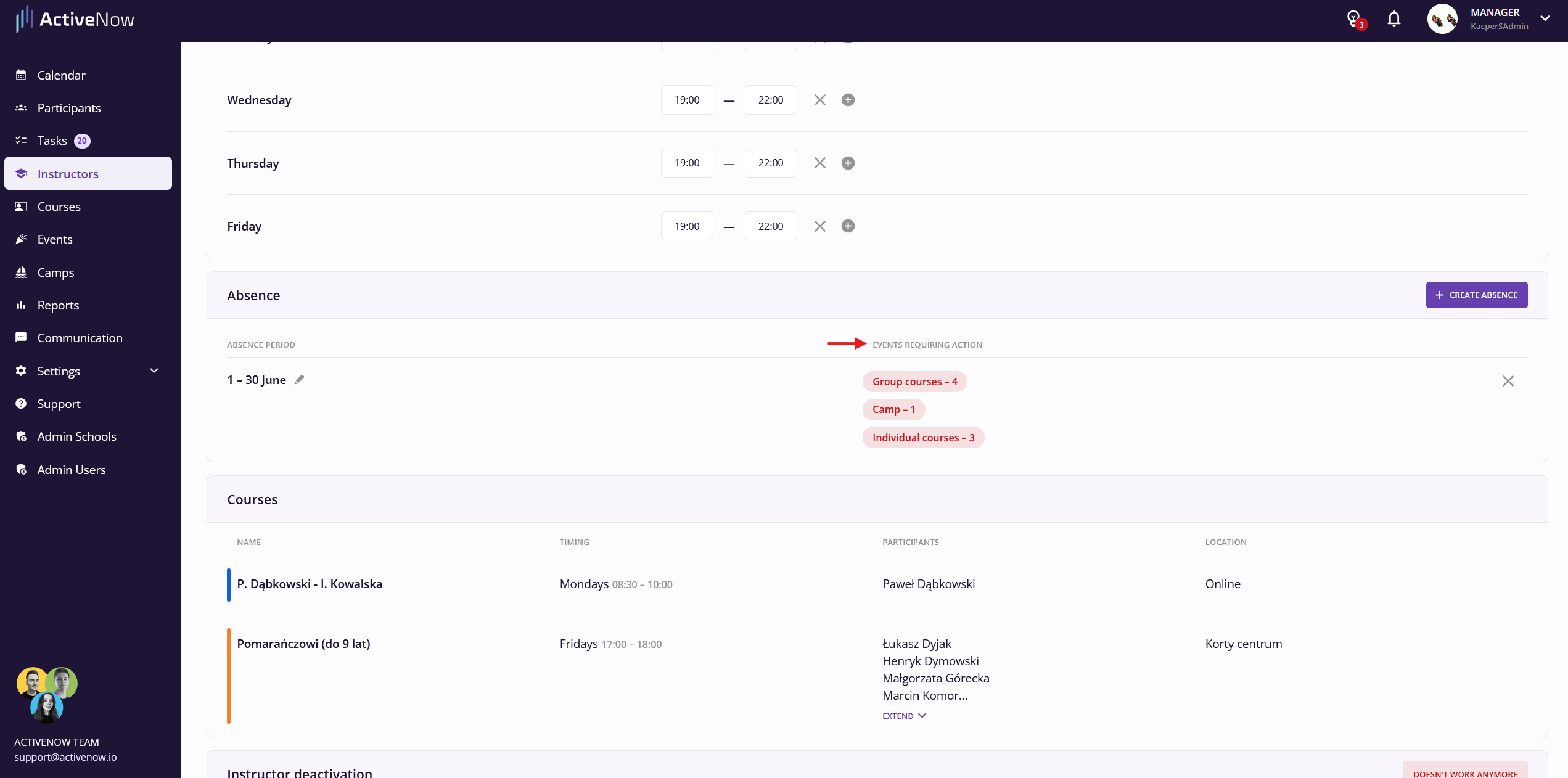
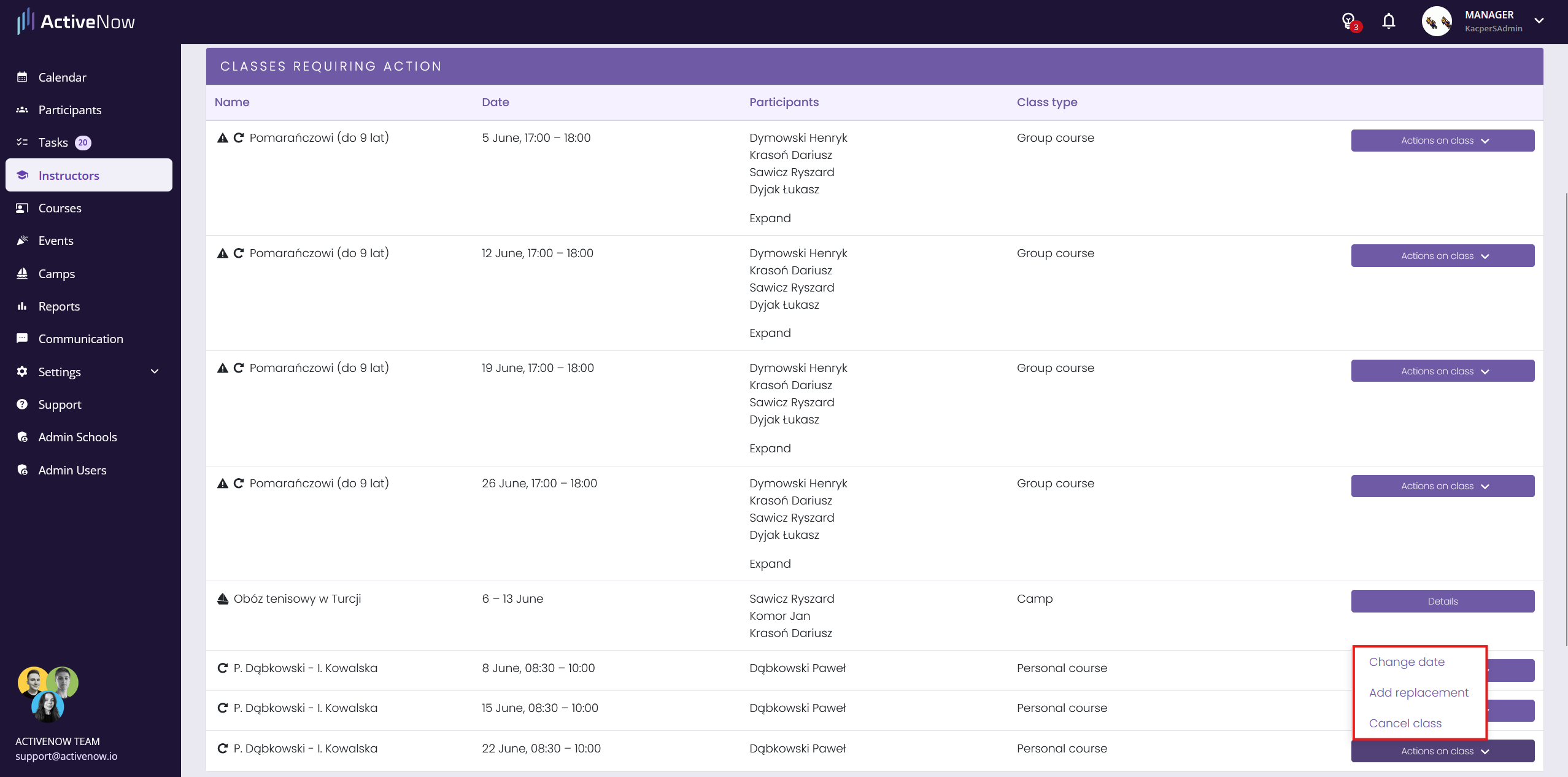
If the instructor had classes scheduled during their absence, they will appear in the ***Classes requiring action*** table. This includes group courses, individual courses, camps, and events.
For each class, expand the ***Actions on class*** menu and choose one of the options:
* **Change date** — move the class to a different date or time.
* **Add replacement** — assign another instructor to cover the class.
* **Cancel class** — cancel the class (for individual courses).
{% hint style="info" %}
Camps and events work differently from standard courses — modifications for them are available by clicking the ***Details*** button.
{% endhint %}
## Tasks — classes without an instructor
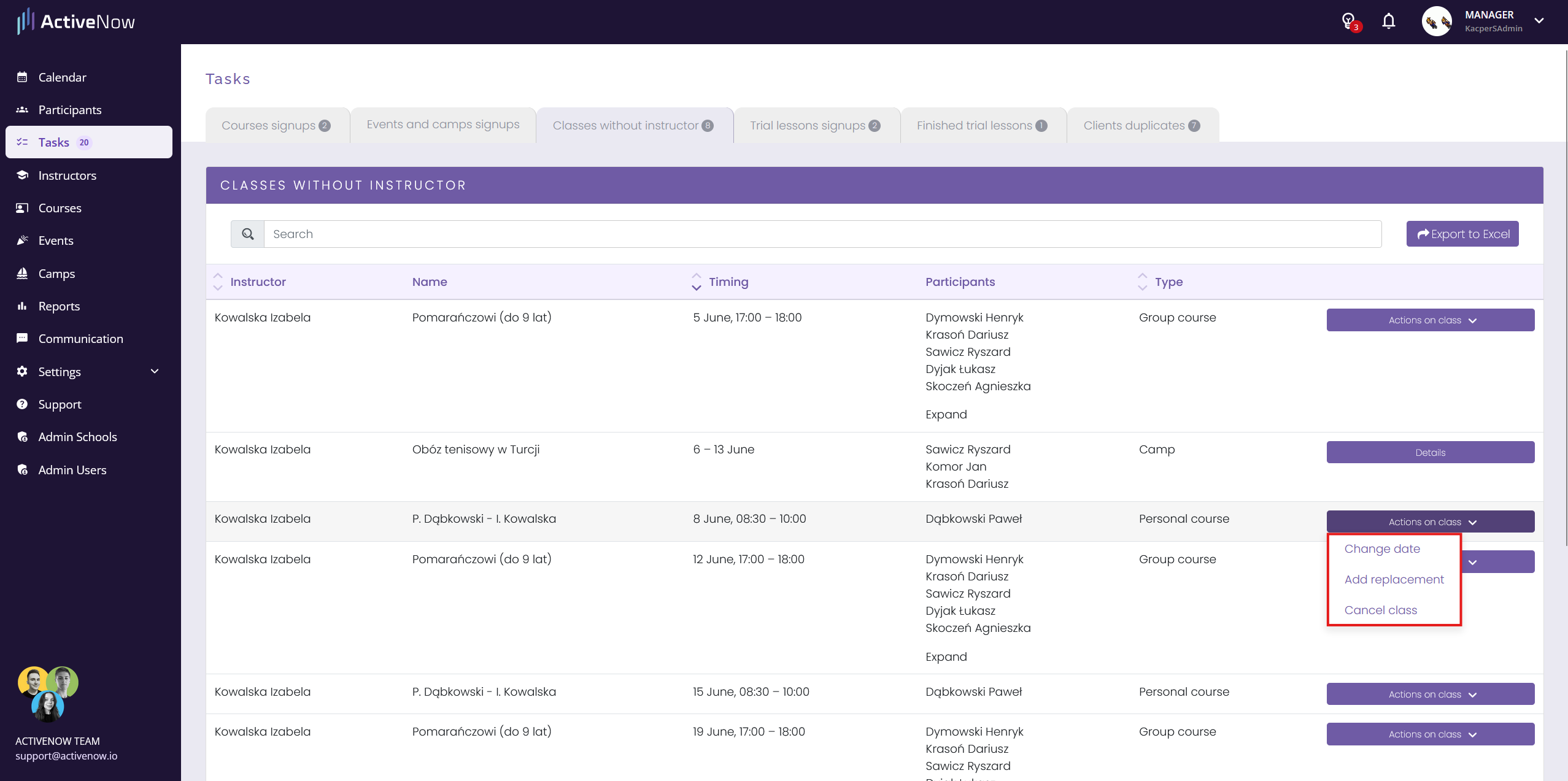
All classes of all absent instructors that require action are also available in the ***Tasks*** tab, under the ***Classes without instructor*** section. This is a global view — useful when you are managing absences for several instructors at the same time.
The available actions are the same as in the *Classes requiring action* table. Once a change is made, the entry disappears from the list.
## Absences in the calendar
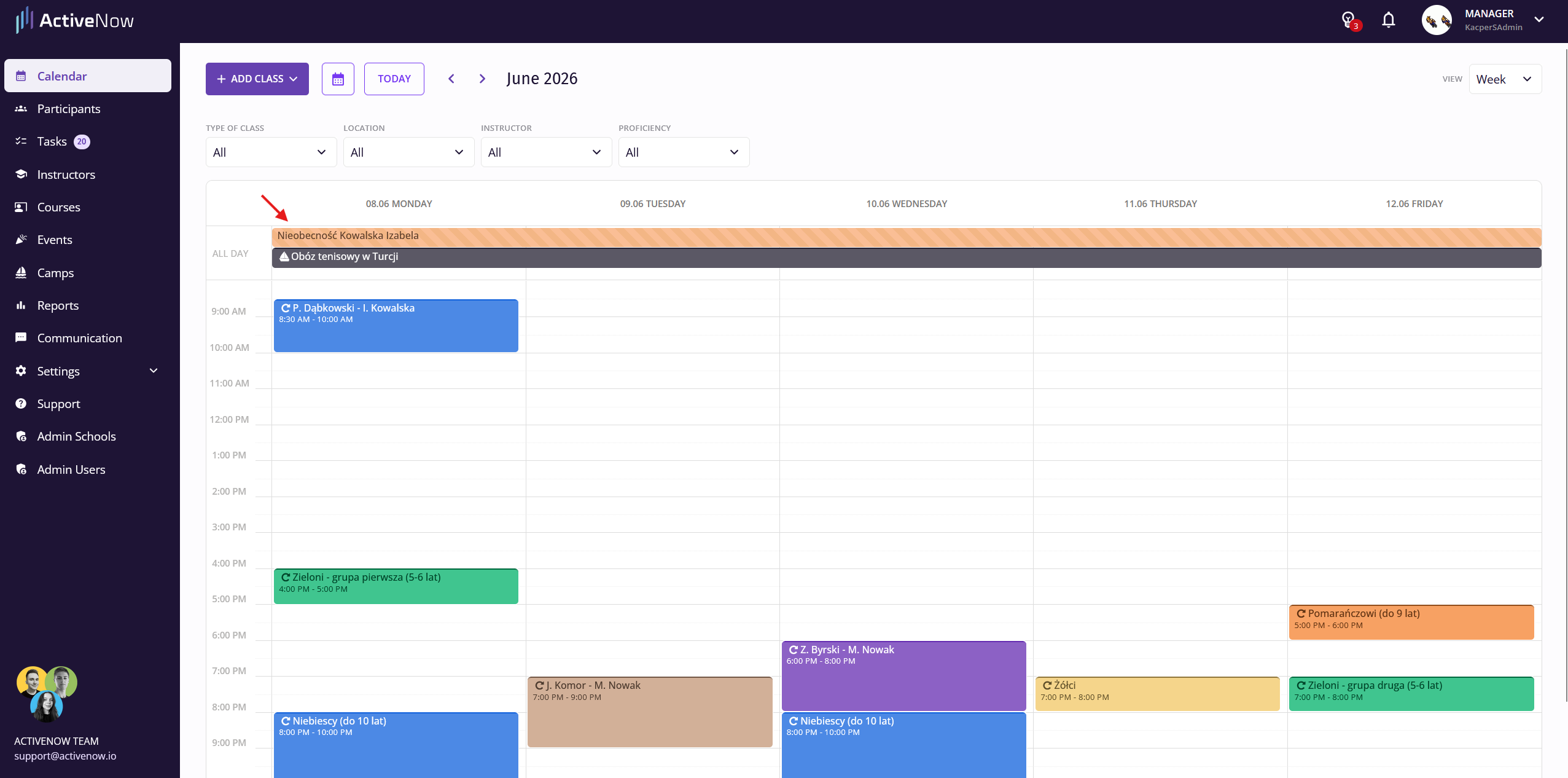
A recorded absence appears in the calendar, displayed horizontally in the weekly, daily, and monthly views.
Any lesson, camp, or event scheduled with the absent instructor is marked with a triangle warning icon.
## Notification for the instructor
When you record an absence, the instructor will automatically receive a notification in their panel.
---
# Agent Instructions
This documentation is published with GitBook. GitBook is the documentation platform designed so that both humans and AI agents can read, navigate, and reason over technical content effectively. Learn more at gitbook.com.
## Querying This Documentation
If you need additional information that is not directly available in this page, you can query the documentation by asking a question.
Perform an HTTP GET request on the following URL with the `ask` and `goal` query parameters:
```
GET https://help.activenow.io/en/instructor-management/instructor-absences.md?ask=&goal=
```
`ask` is the immediate question: it should be specific, self-contained, and written in natural language.
`goal` is what the user is ultimately trying to achieve, the reason they need the answer. Sharing it helps GitBook give you a better, more relevant answer. A goal is most helpful when it describes the outcome the user wants rather than restating the question. For example, with `ask=how do I create an API token`, a goal like `automate deployments from our CI pipeline` lets GitBook tailor the answer to that use case.
The response will contain a direct answer to the question and relevant excerpts and sources from the documentation.
Use this mechanism when the answer is not explicitly present in the current page, you need clarification or additional context, or you want to retrieve related documentation sections.