> For the complete documentation index, see [llms.txt](https://help.activenow.io/llms.txt). Markdown versions of documentation pages are available by appending `.md` to page URLs; this page is available as [Markdown](https://help.activenow.io/en/instructor-management/instructor-availability.md).
# Setting Instructor Availability
Do your instructors only work on certain days of the week? Or do they have gaps between classes during the day?
You can record this in ActiveNow easily.
Defining availability improves day-to-day workflows in several ways:
* When adding substitutions, **ActiveNow will suggest the instructor who is the best fit** for covering a lesson, taking their availability into account. This saves time when deciding who can step in. Read more in [Instructor Substitutions](/en/instructor-management/instructor-substitutions.md).
* In the **Calendar**, the system shows **greyed-out time blocks** for the instructor selected in the filter at the top — a clear visual signal that the instructor is unavailable during those hours. This makes it easier to decide on rescheduling a lesson or planning a new course.
To see all instructors' availability for a given day at a glance, use the *Day — Instructors* calendar view.
## Setting an instructor's availability
{% stepper %}
{% step %}
**Go to the *****Instructors***** tab and open the instructor's profile**
{% endstep %}
{% step %}
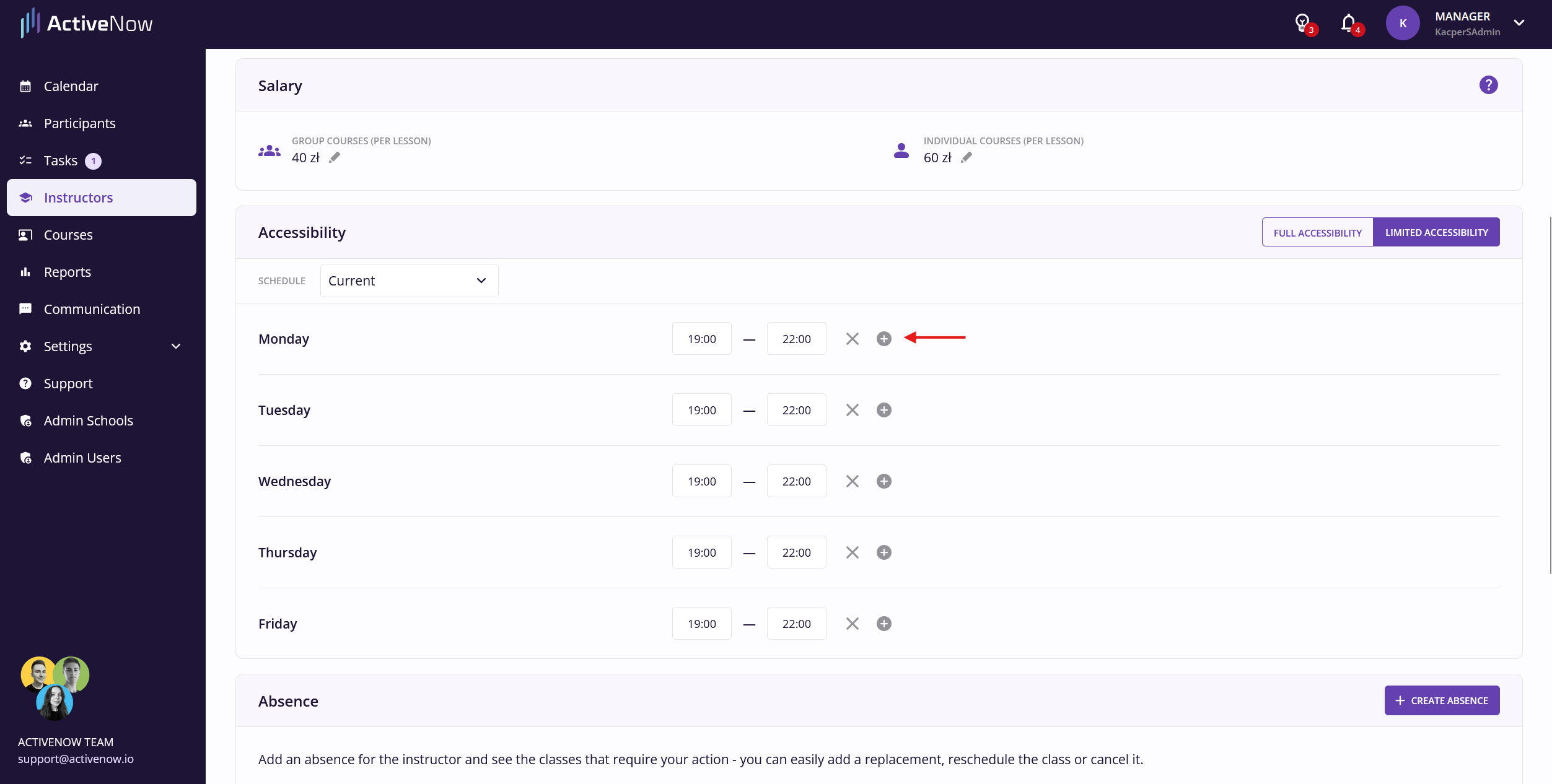
**Switch from *****Full accessibility***** to *****Limited accessibility***** to define the days and hours when the instructor can teach**
By default, the instructor's availability matches the school's opening hours.
You can also **set a split availability** — if an instructor has a gap during the day, use the *plus icon* to add a second availability block.
{% endstep %}
{% endstepper %}
## Changing an instructor's schedule
If you know that an **instructor's availability is changing — for example from a new semester** — you can plan the new schedule in advance. The original hours will apply until the start date you specify.
This lets you **plan an instructor's new working hours ahead of time**, and the system will use them automatically once the new schedule takes effect.
To add a new schedule:
{% stepper %}
{% step %}
**Open the instructor's profile**
{% endstep %}
{% step %}
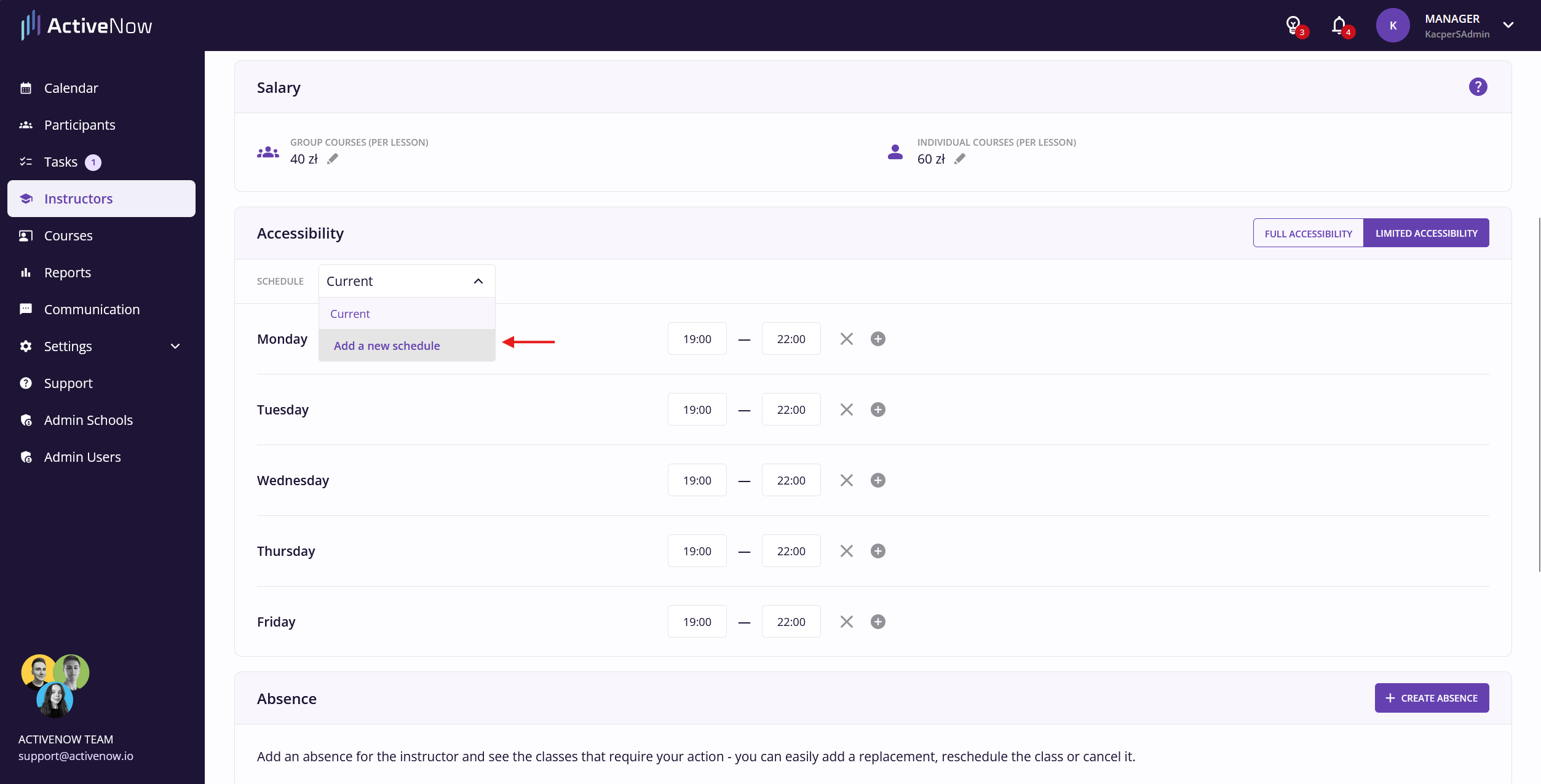
**In the *****Accessibility***** section, click the dropdown that shows *****Current***
{% endstep %}
{% step %}
**Select *****Add a new schedule***
{% endstep %}
{% step %}
**In the dialog, set the start date, click *****Confirm*****, and define the new working hours**
{% endstep %}
{% endstepper %}
---
# Agent Instructions
This documentation is published with GitBook. GitBook is the documentation platform designed so that both humans and AI agents can read, navigate, and reason over technical content effectively. Learn more at gitbook.com.
## Querying This Documentation
If you need additional information that is not directly available in this page, you can query the documentation by asking a question.
Perform an HTTP GET request on the following URL with the `ask` and `goal` query parameters:
```
GET https://help.activenow.io/en/instructor-management/instructor-availability.md?ask=&goal=
```
`ask` is the immediate question: it should be specific, self-contained, and written in natural language.
`goal` is what the user is ultimately trying to achieve, the reason they need the answer. Sharing it helps GitBook give you a better, more relevant answer. A goal is most helpful when it describes the outcome the user wants rather than restating the question. For example, with `ask=how do I create an API token`, a goal like `automate deployments from our CI pipeline` lets GitBook tailor the answer to that use case.
The response will contain a direct answer to the question and relevant excerpts and sources from the documentation.
Use this mechanism when the answer is not explicitly present in the current page, you need clarification or additional context, or you want to retrieve related documentation sections.