> For the complete documentation index, see [llms.txt](https://help.activenow.io/llms.txt). Markdown versions of documentation pages are available by appending `.md` to page URLs; this page is available as [Markdown](https://help.activenow.io/en/instructor-panel/using-the-instructor-panel.md).
# Using the Instructor Panel
The Instructor Panel is your **command centre** — a single place where you have everything you need to run your classes smoothly.
From the panel you can check your upcoming schedule, mark attendance, and enter grades — without digging through notebooks or separate tools.
## How to get access
Before you can log in, the school must create your profile in the system and **send you an invitation by email** with a registration link. You can read more about this in the [Registering as an instructor](/en/instructor-panel/registering-as-an-instructor.md) article.
## What is in the panel?
The panel is divided into several tabs, accessible from the left-side menu.
## My calendar
The default view after logging in. Use it to see your **upcoming lessons** and open the lesson details for any lesson by clicking its tile.
If the school grants you the appropriate permissions, you can also **reschedule an individual lesson** or **create a one-time class** from this view.
If you use an external calendar such as Google, Outlook, or Apple, you can sync it with your ActiveNow schedule. Read how in the [Calendar integration](/en/instructor-panel/calendar-integration-google-outlook-apple.md) article.
## Reschedule requests
When the school grants you the appropriate permissions, all of your participants' requests to reschedule individual lessons appear here. From this view you can **propose a new lesson time** or **reject a client's request**.
You can also reach a reschedule request directly from the notification bell at the top of the screen or from a push notification on your phone.
## Decisions after trial lessons
If the school offers trial lesson sign-ups, you can record here **whether a participant wants to continue** and **add a comment on their decision** after the first session.
## All my classes
A list view of **all your lessons**, divided into two categories: *Finished* and *Upcoming*.
You can sort lessons by date by clicking the *Date* column header.
Each lesson entry shows its details. If you want to update any information, click the grey pencil icon next to the lesson to edit it.
## Participants
Shows a **list of all your students** along with profile information such as the classes they attend, email address, phone number, parent name, date of birth, proficiency level, and any other data the school has collected. Which fields are visible depends on the permissions set by the school manager.
## Substitutions
A **list of all your substitutions** — lessons where you covered for another instructor, or where someone covered for you.
## My personal details
Shows your basic account information: name and email address. You can also **change the application language** from this view.
## During a lesson
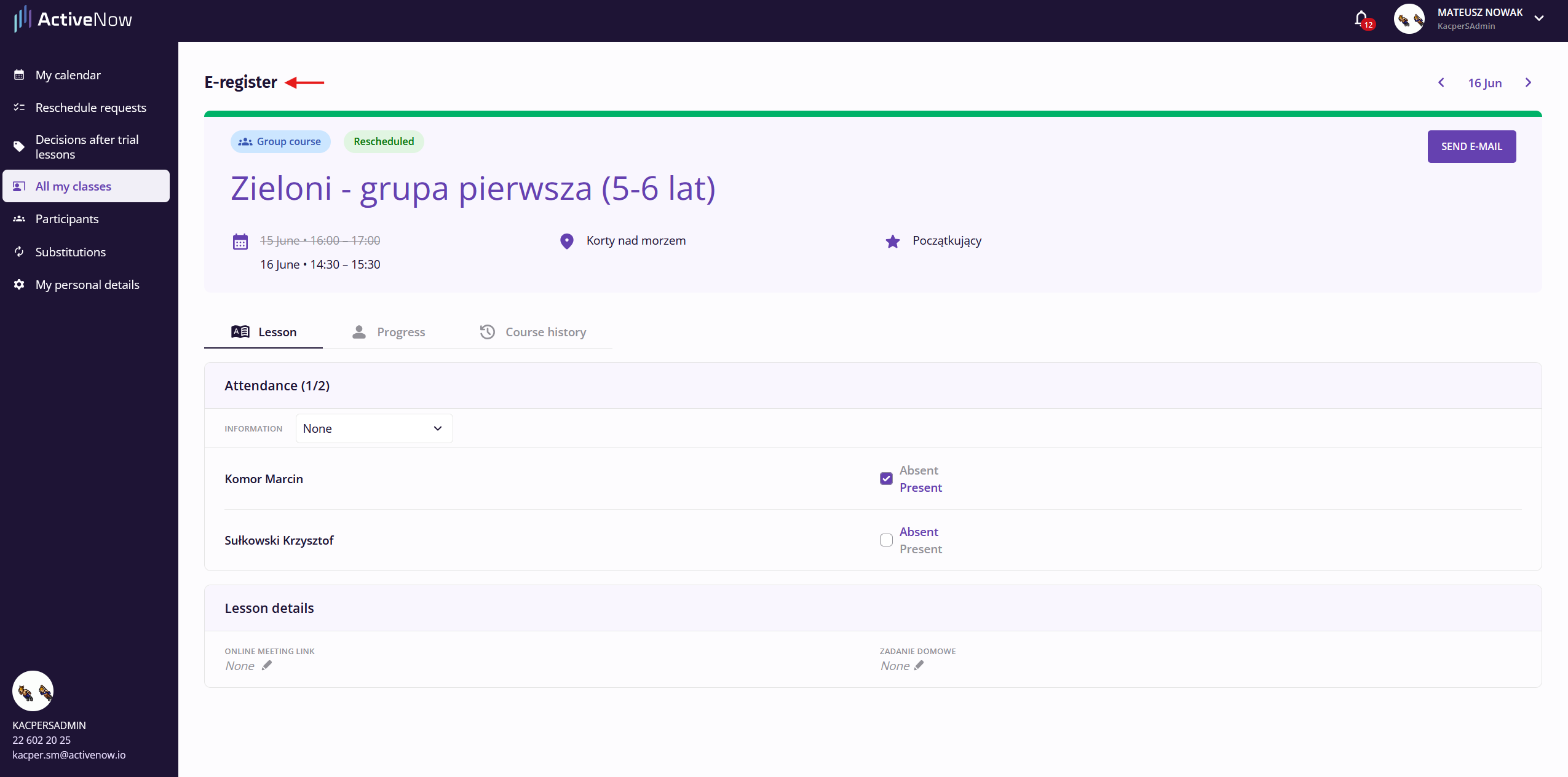
Clicking any lesson tile in *My calendar* opens the ***E-register***. The header shows key lesson information along with navigation to the previous and next lesson in the course. If the school has enabled it, the header also contains a button to email participants — read more in the [Sending emails from the Instructor Panel](/en/instructor-panel/sending-emails-from-instructor-panel.md) article.
If the lesson is held online, a **banner with a join link** also appears in the header.
The view is split into three tabs:
* ***Lesson*** — [attendance](/en/instructor-panel/checking-attendance-as-an-instructor.md) and a *Lesson details* section with editable fields (topic, homework, custom school fields, online meeting link).
* ***Progress*** — participant [grades](/en/instructor-panel/managing-participant-grades.md) and [skills](/en/instructor-panel/e-register-for-instructors.md).
* ***Course history*** — [full history](/en/instructor-panel/checking-lesson-history-as-an-instructor.md) of all lessons in the course.
---
# Agent Instructions
This documentation is published with GitBook. GitBook is the documentation platform designed so that both humans and AI agents can read, navigate, and reason over technical content effectively. Learn more at gitbook.com.
## Querying This Documentation
If you need additional information that is not directly available in this page, you can query the documentation by asking a question.
Perform an HTTP GET request on the following URL with the `ask` and `goal` query parameters:
```
GET https://help.activenow.io/en/instructor-panel/using-the-instructor-panel.md?ask=&goal=
```
`ask` is the immediate question: it should be specific, self-contained, and written in natural language.
`goal` is what the user is ultimately trying to achieve, the reason they need the answer. Sharing it helps GitBook give you a better, more relevant answer. A goal is most helpful when it describes the outcome the user wants rather than restating the question. For example, with `ask=how do I create an API token`, a goal like `automate deployments from our CI pipeline` lets GitBook tailor the answer to that use case.
The response will contain a direct answer to the question and relevant excerpts and sources from the documentation.
Use this mechanism when the answer is not explicitly present in the current page, you need clarification or additional context, or you want to retrieve related documentation sections.