> For the complete documentation index, see [llms.txt](https://help.activenow.io/llms.txt). Markdown versions of documentation pages are available by appending `.md` to page URLs; this page is available as [Markdown](https://help.activenow.io/en/online-sign-ups/sign-up-table.md).
# Collecting Sign-Ups for Group Courses
In ActiveNow, you can easily accept online sign-ups for your courses using the sign-up table. Through it, clients can enrol in their chosen classes, provide their contact details, and accept any required consents.
No more manual data entry — once a client submits the form, all their information is automatically added to your ActiveNow account.
## Adding courses
Before clients can sign up through the table, you need to add courses to the system. You can find out how to do this [**here**](/en/getting-started/creating-new-classes.md).
## Editing the table settings
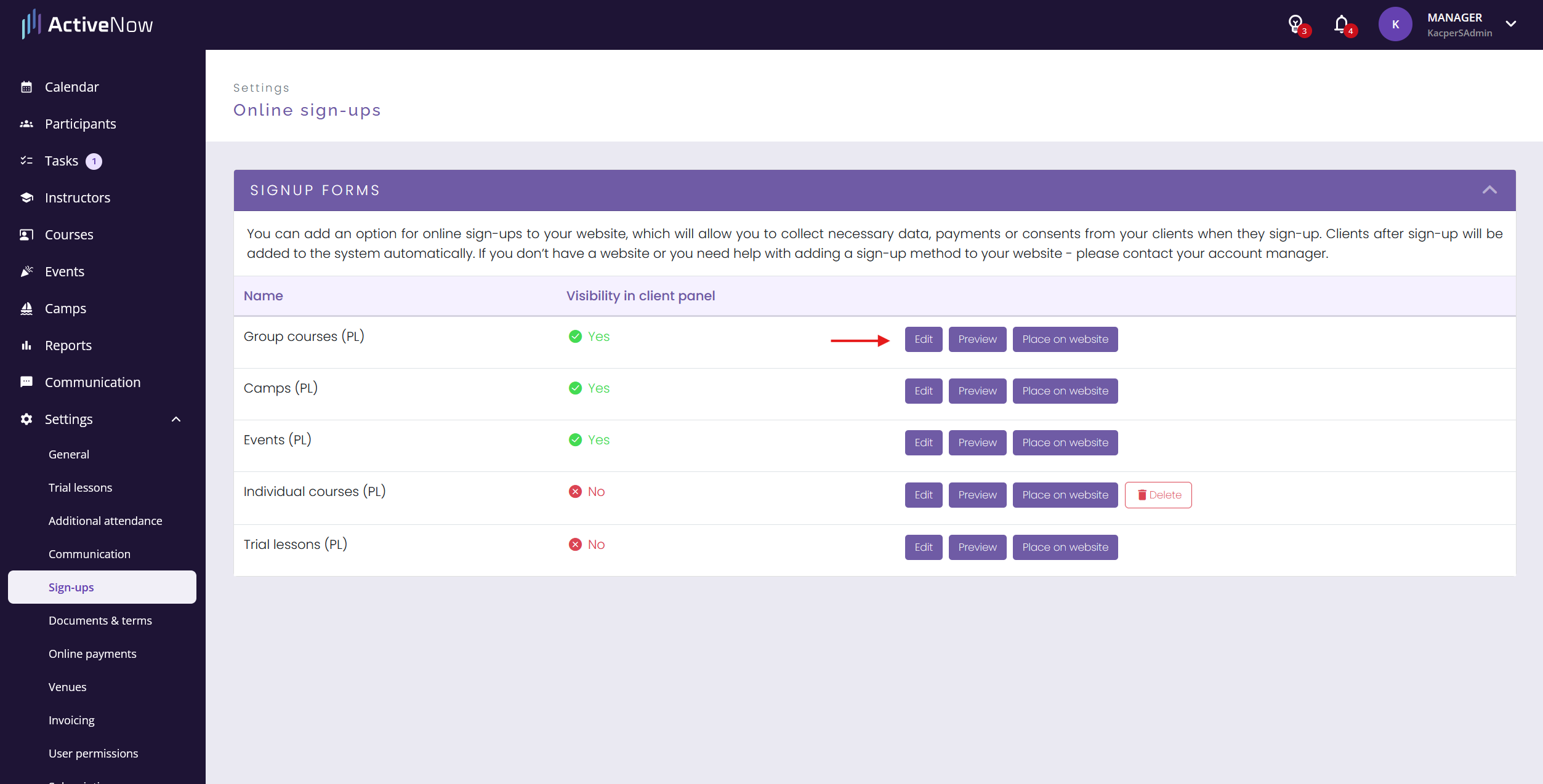
Once you have courses in the system, you can configure what is shown in the sign-up table. Go to *Settings* → *Sign-ups* and click *Edit*.
## Information displayed in the table
In the first configuration screen, you decide:
* **which course details are visible to the client in the sign-up summary** — these also determine which filters appear at the top of the table. If you don't want to show, for example, a level filter, simply uncheck that option.
* which **columns** are **displayed in the table**
Each filter supports multiple selection — clients can tick several values at once, for example both intermediate and advanced level, to browse all the courses they're interested in at the same time.
{% hint style="info" %}
If you offer courses for both children and adults, an **Age** filter will appear in the table automatically. This filter is managed centrally by the system — it cannot be turned off from the *Information displayed* section. It appears only when you have at least one course for children and one for adults (or a mixed course) at the same time.
{% endhint %}

## Client information fields
Next, you can manage which fields the client needs to fill in during sign-up. Each field can be marked as:
* **visible** — the field appears in the sign-up form, but the client is not required to fill it in to complete the sign-up
* **required** — the client cannot complete the sign-up without filling in this field
{% hint style="info" %}
**Parent fields** in the group course sign-up form are managed automatically based on the course's age group — not through this section. For a children's course, parent fields are required; for an adults' course, they are hidden; for a mixed course, a *Signing up a child* checkbox appears, which shows or hides the parent fields. Manual visibility settings for parent fields only apply to forms other than group courses (e.g. camps, events).
{% endhint %}

## Terms and consents
You can also add required checkboxes to the form — for example, for terms of service, image rights consent, or a privacy policy. This automates the process of clients accepting your terms. For more details, see [**Managing Terms and Consents**](/en/online-sign-ups/managing-terms-and-consents.md).

## Discount codes
If you offer clients a discount on sign-up through a discount code, you can add it in the next section. More information can be found in the [**Discount Codes**](/en/online-sign-ups/discount-codes.md) article.

## Online payments
**The payment option during sign-ups is only available once you have set up** [**online payments**](/en/billing/payu-configuration.md)**.**
You can require clients to pay at the point of sign-up to make sure they show up for their classes.
After submitting the form, the client is redirected to the payment page. They pay conveniently online, and you receive a notification in ActiveNow.
The payment at sign-up can be collected as:
* **a course fee** — the client pays the amount of the first payment for that group (depending on the billing method, this may be the price of a single lesson, a monthly fee, an instalment, or the full amount)
* **a flat prepayment** — if you want clients to always pay a fixed amount regardless of the course (for example as a booking fee), check the *Flat prepayment amount* option and enter the prepayment amount
If a client pays immediately after signing up, the spot is reserved automatically — no manual approval needed.

## E-mail communication
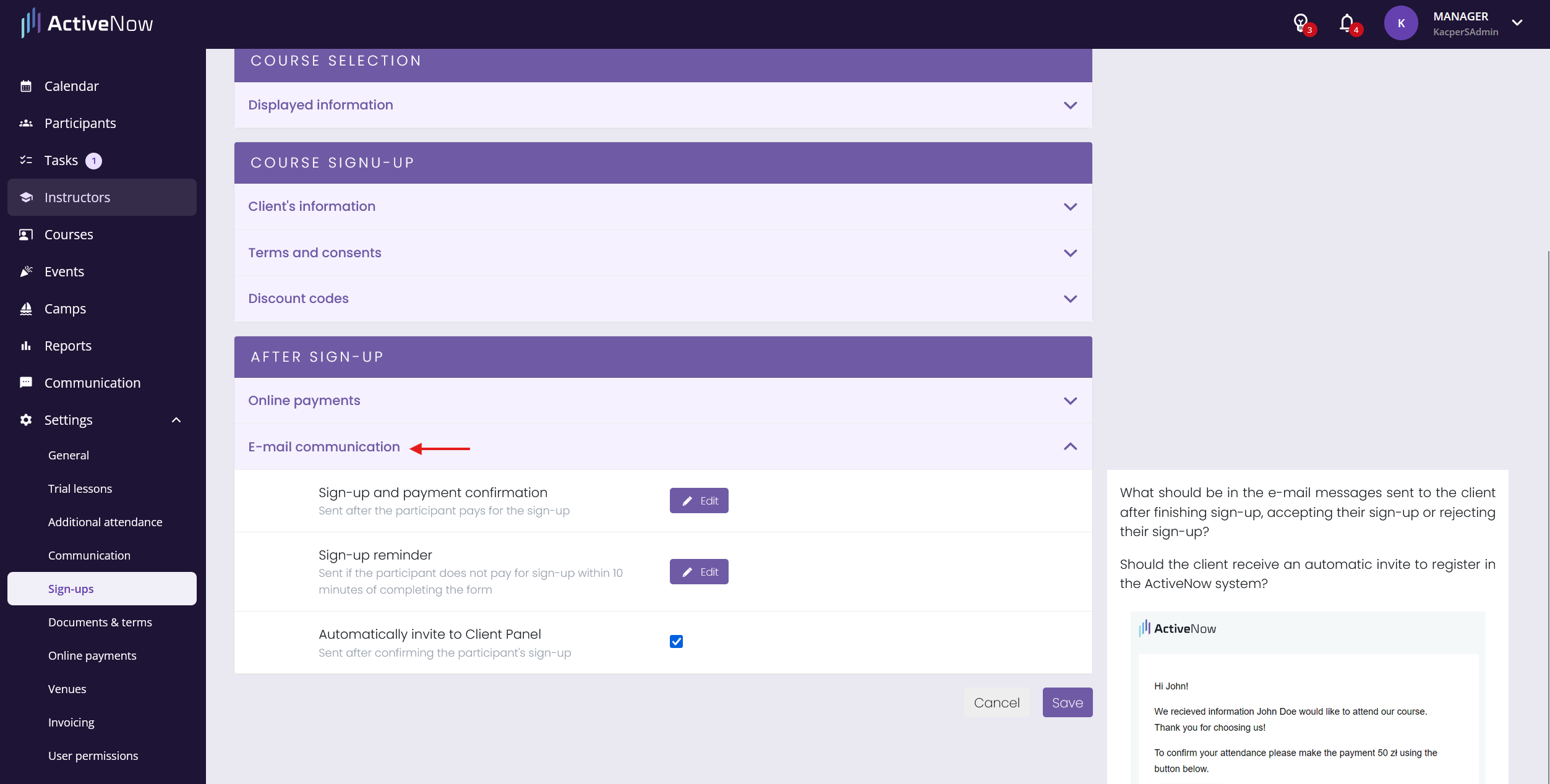
At every stage of the sign-up process, the customer receives an automated email. In the Email Communication section, you can customize the content of each message to match your communication style:
* **Sign-up received** — sent after the form is submitted. It includes details of the selected classes, confirmation of registration, and the accepted documents.
If you want customers to automatically receive an invitation to the ***Client Panel*** after their registration is approved, select the "**Automatically invite to Client Panel**" option.

When online payments are enabled, you’ll have the option to set up two automated emails:
* **Sign-up and payment confirmation** – sent after the registration is paid for online.
* **Sign-up reminder** – sent if the participant does not pay for the registration within 10 minutes of filling out the form.
## Previewing the table
Once you've configured all the settings, you can see what the sign-up process will look like from the client's perspective before embedding the table on your website.
In *Settings* → *Edit*, click *Preview*. From there you can submit a test sign-up and verify that everything works as expected.

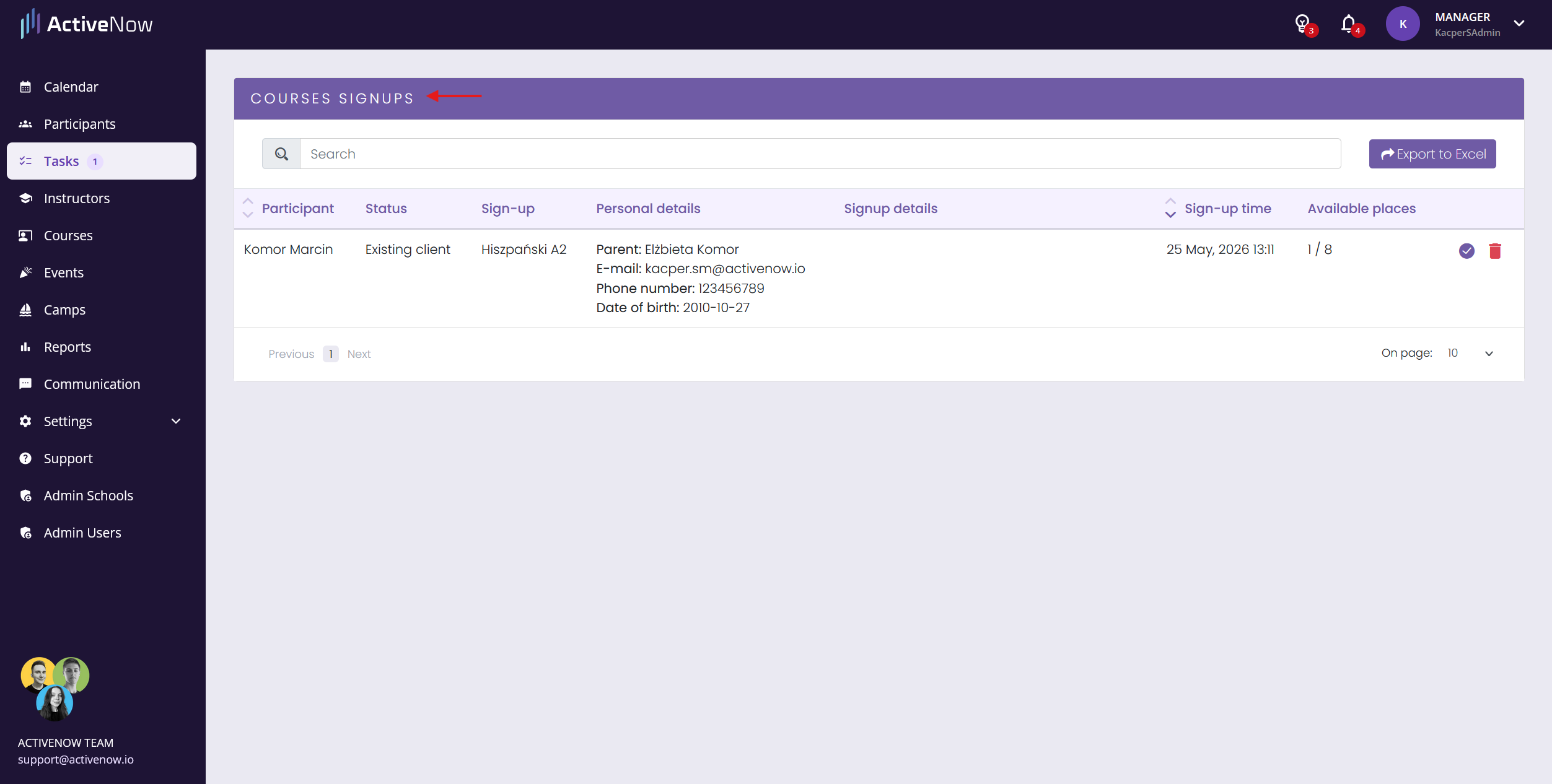
## Pending sign-ups
After a client submits the form, all their details — name, phone number, email address, chosen course — are automatically added to ActiveNow. You can confirm or reject the sign-up in the *Pending sign-ups* tab. More details can be found in [**Managing Pending Sign-Ups**](/en/online-sign-ups/managing-pending-sign-ups.md).
## How to embed the table on your website
In the same tab (*Settings* → *Sign-ups*), you'll find the *Place on website* button. Clicking it shows the HTML code — copy it and paste it into the right place on your website. If you use WordPress or Wix, we have step-by-step instructions for each platform: [**WordPress**](/en/online-sign-ups/embedding-signup-form-on-wordpress.md) and [**Wix**](/en/online-sign-ups/embedding-signup-form-on-wix.md).
The table automatically adapts to the look and feel of your website.
In the *Place on website* window, you can also expand the **Generate form code with filtered classes** section to embed a version of the table showing only courses from a specific location, proficiency level, or — if you teach children and adults — a specific age group.
If you need further customisation — colours, fonts, or text — this can be done directly on your website using CSS. Contact your developer to help apply the changes.
## No website, but want to collect sign-ups?
We want to make your everyday work as easy as possible, so we can prepare a **dedicated sign-up page link** where your table will be hosted.
You can share the link on social media or send it to interested clients to streamline the sign-up process.
If you'd like us to generate a link for you, reach out to us via chat, email, or phone.
---
# Agent Instructions
This documentation is published with GitBook. GitBook is the documentation platform designed so that both humans and AI agents can read, navigate, and reason over technical content effectively. Learn more at gitbook.com.
## Querying This Documentation
If you need additional information that is not directly available in this page, you can query the documentation by asking a question.
Perform an HTTP GET request on the following URL with the `ask` and `goal` query parameters:
```
GET https://help.activenow.io/en/online-sign-ups/sign-up-table.md?ask=&goal=
```
`ask` is the immediate question: it should be specific, self-contained, and written in natural language.
`goal` is what the user is ultimately trying to achieve, the reason they need the answer. Sharing it helps GitBook give you a better, more relevant answer. A goal is most helpful when it describes the outcome the user wants rather than restating the question. For example, with `ask=how do I create an API token`, a goal like `automate deployments from our CI pipeline` lets GitBook tailor the answer to that use case.
The response will contain a direct answer to the question and relevant excerpts and sources from the documentation.
Use this mechanism when the answer is not explicitly present in the current page, you need clarification or additional context, or you want to retrieve related documentation sections.