> For the complete documentation index, see [llms.txt](https://help.activenow.io/llms.txt). Markdown versions of documentation pages are available by appending `.md` to page URLs; this page is available as [Markdown](https://help.activenow.io/en/online-sign-ups/trial-lessons.md).
# Collecting Sign-Ups for Trial Lessons
A trial lesson gives potential participants a chance to try out a class before committing to a full course — and gives you the opportunity to assess their level and needs. In ActiveNow you can collect trial lesson sign-ups online, assign instructors, and convert a trial into a regular individual or group course in just a few clicks.
{% stepper %}
{% step %}
**Availability for trial lessons**
Go to *Settings* → *Your Offering* and enable *Trial lessons (individual)*.

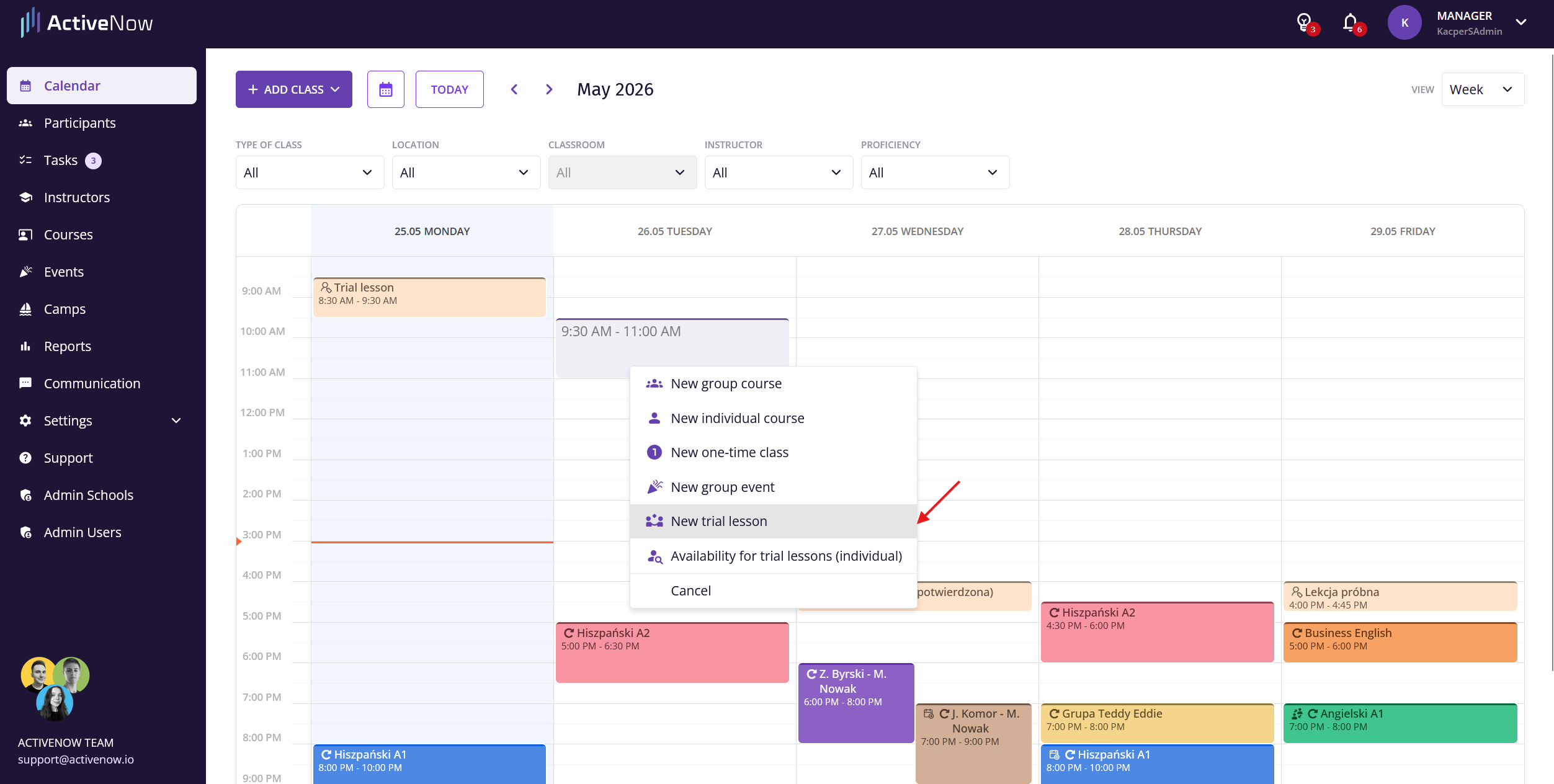
Before you can start accepting trial lesson sign-ups, you need to set up availability for them in the Calendar. To do this, drag across the Calendar to create a new *Availability for trial lessons (individual)*.

For each availability block, specify the trial lesson type (for example, the subject) and select which instructors can teach that type of trial lesson during the given time. You can also repeat the availability for other days of the week and set when it is active (for example, add breaks).

{% endstep %}
{% step %}
**Trial lesson sign-up form**
Next, you need to add the trial lesson sign-up form to your website. You can find it in *Settings* → *Sign-ups*. Click *Place on website* next to the trial lessons form, copy the form code, and paste it into the appropriate place on your website.

You can edit the form by clicking *Edit* next to the trial lesson form in *Settings* → *Sign-ups*.
The sign-up form will show available time slots for the selected trial lesson type, calculated based on the availability of instructors assigned to that type.

{% endstep %}
{% step %}
**Handling trial lesson sign-ups**
All sign-ups submitted through the form will appear in *Pending sign-ups* → *Trial lessons signups*. There you can confirm or reject each sign-up. When confirming, you can review all the details, select an instructor from those available at the chosen time, and leave an internal note for the instructor. If the lesson takes place *Online*, you also need to provide a link to the session. After confirming, the client will receive an email with all the trial lesson details.

If your trial lessons are not free and you use online payments, you will see the payment status for each lesson. **Payment alone does not automatically confirm the sign-up** — the school still needs to confirm it manually.

{% endstep %}
{% step %}
**Following up after a trial lesson**
Once a trial lesson ends, the instructor can record whether the participant wants to continue and leave a comment for the school (for example, about convenient course times for the participant or instructor).

As soon as the decision is recorded, it will appear in *Pending sign-ups* → *Finished trial lessons*.
From there, you can use the *Actions* button to:
* Create an individual course for the participant (they will receive an email notifying them)
* Add the participant to a group course (they will receive an email notifying them)
* Hide the task from the pending list

Every hour, finished trial lessons for which the instructor has not yet recorded a continuation decision will also appear on the list. This lets you follow up with the participant or ask the instructor to fill in the decision — which they can do in their Instructor Panel, in the e-register, or in the *Decisions after trial lessons* tab.
{% endstep %}
{% step %}
**Creating trial lessons manually**
You can also create a trial lesson manually from the Calendar. Drag across the Calendar to create a *New trial lesson* and assign any participant from the list. **The participant will not receive a confirmation email** when added this way, so manual trial lessons are best created after privately agreeing on the details with the participant.
{% endstep %}
{% endstepper %}
---
# Agent Instructions
This documentation is published with GitBook. GitBook is the documentation platform designed so that both humans and AI agents can read, navigate, and reason over technical content effectively. Learn more at gitbook.com.
## Querying This Documentation
If you need additional information that is not directly available in this page, you can query the documentation by asking a question.
Perform an HTTP GET request on the following URL with the `ask` and `goal` query parameters:
```
GET https://help.activenow.io/en/online-sign-ups/trial-lessons.md?ask=&goal=
```
`ask` is the immediate question: it should be specific, self-contained, and written in natural language.
`goal` is what the user is ultimately trying to achieve, the reason they need the answer. Sharing it helps GitBook give you a better, more relevant answer. A goal is most helpful when it describes the outcome the user wants rather than restating the question. For example, with `ask=how do I create an API token`, a goal like `automate deployments from our CI pipeline` lets GitBook tailor the answer to that use case.
The response will contain a direct answer to the question and relevant excerpts and sources from the documentation.
Use this mechanism when the answer is not explicitly present in the current page, you need clarification or additional context, or you want to retrieve related documentation sections.