> For the complete documentation index, see [llms.txt](https://help.activenow.io/llms.txt). Markdown versions of documentation pages are available by appending `.md` to page URLs; this page is available as [Markdown](https://help.activenow.io/en/online-sign-ups/waiting-list.md).
# Collecting Waiting List Sign-Ups
Full groups are the best outcome after sign-ups close — they let you achieve **maximum revenue at fixed costs**. With a smooth sign-up process, you can fill every course to the last spot.
That said, **participant withdrawals do happen** — schedules change, a child loses interest, or other commitments arise. When that happens, speed matters — you want to find a replacement as quickly as possible.
## How does the waiting list work?
A parent can sign up for a full course through the sign-up table. That sign-up goes on the ***Waiting list*** and waits for a spot to open up.
When one of the existing participants drops out, you can remove them from the course and then **accept the next person from the *****Waiting list***. This keeps your groups full and your revenue intact.
## How to enable the waiting list for a course?
You decide whether to allow waiting list sign-ups for each course individually.
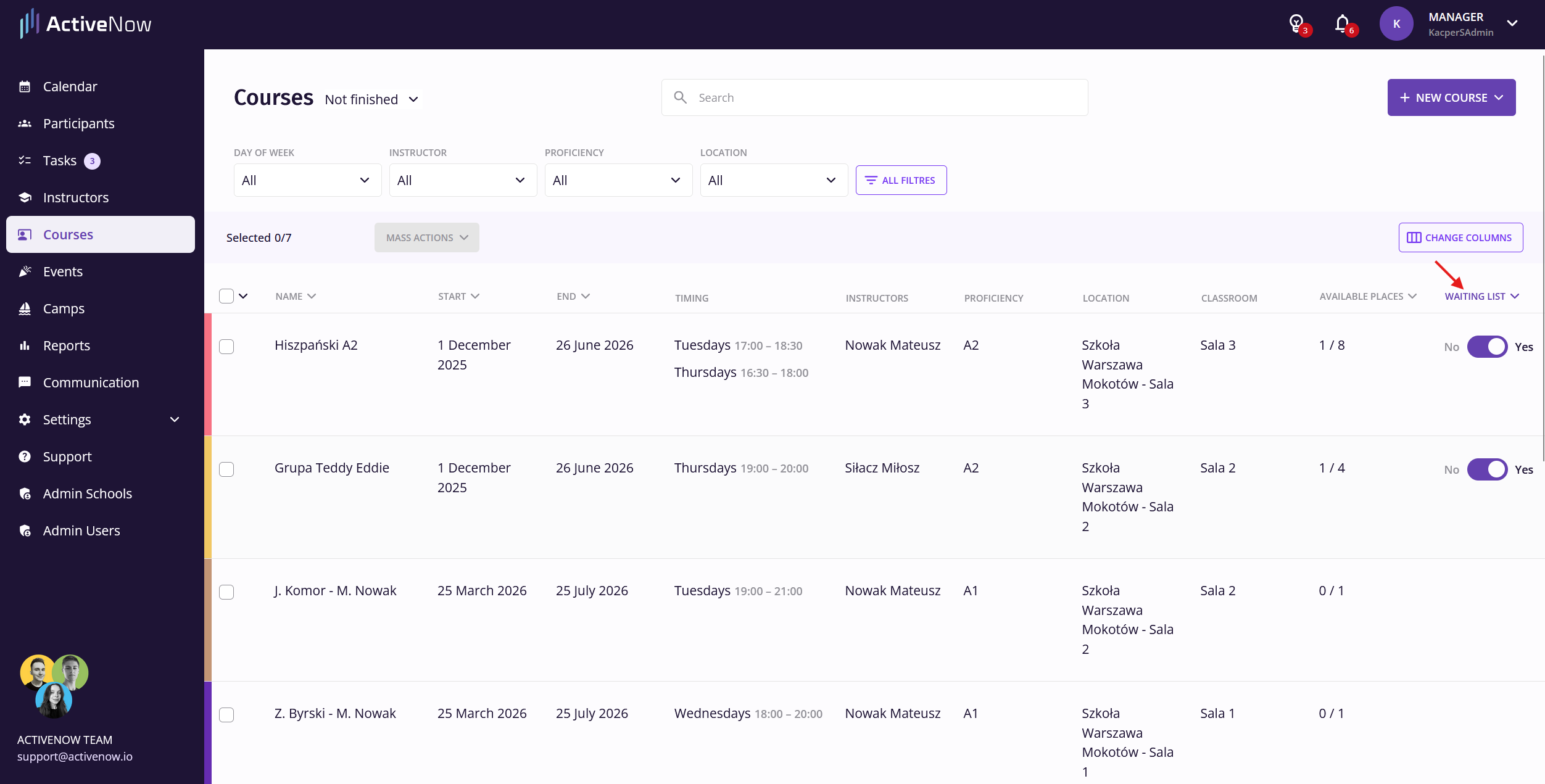
You can do this from the *Courses* tab:
* Make sure the ***Waiting list*** column is visible.
* In the ***Waiting list*** column, toggle the switch next to the course to *yes* to enable sign-ups.
Done! Participants will now be able to join the waiting list once the course is full.
## How does a course with an active waiting list appear?
If a course is full but waiting list sign-ups are enabled, the course will still appear in the **sign-up table**.
A label (*Waiting list*) will appear next to its name.

This lets potential participants know they can still sign up to wait for an available spot, rather than giving up on the course entirely.
## What does a participant see after signing up?
After submitting the form, the parent will see a message confirming they have been added to the ***Waiting list***.
They will also receive a **confirmation email**.
## Notification for the school
When a participant joins the *Waiting list*, a **notification** will appear in ActiveNow. Clicking it takes you directly to the relevant course.

## Accepting and rejecting waiting list sign-ups
You can find the waiting list at the bottom of the **course details page**.
From there you can:
* **accept** a participant to join the group,
* **reject** a sign-up if you are not planning to take on more participants.

When accepting or rejecting, you can choose whether to:
* send a confirmation — the participant will receive an email about your decision,
* not send a confirmation — the participant will not receive any email.
After acceptance, the participant is automatically added to the course. Depending on the option you chose, ActiveNow will send or skip the confirmation email.
## How to check the number of waiting list sign-ups?
In the *Courses* tab, you can enable the ***Signups on waiting list*** column to see how many people are on the waiting list for each course.

{% hint style="info" %}
Want to collect waiting list sign-ups for camps or events? Contact us at — we'll enable this feature on your account.
{% endhint %}
---
# Agent Instructions
This documentation is published with GitBook. GitBook is the documentation platform designed so that both humans and AI agents can read, navigate, and reason over technical content effectively. Learn more at gitbook.com.
## Querying This Documentation
If you need additional information that is not directly available in this page, you can query the documentation by asking a question.
Perform an HTTP GET request on the following URL with the `ask` and `goal` query parameters:
```
GET https://help.activenow.io/en/online-sign-ups/waiting-list.md?ask=&goal=
```
`ask` is the immediate question: it should be specific, self-contained, and written in natural language.
`goal` is what the user is ultimately trying to achieve, the reason they need the answer. Sharing it helps GitBook give you a better, more relevant answer. A goal is most helpful when it describes the outcome the user wants rather than restating the question. For example, with `ask=how do I create an API token`, a goal like `automate deployments from our CI pipeline` lets GitBook tailor the answer to that use case.
The response will contain a direct answer to the question and relevant excerpts and sources from the documentation.
Use this mechanism when the answer is not explicitly present in the current page, you need clarification or additional context, or you want to retrieve related documentation sections.